


 by The Computing Australia Group |
 How to Prevent Laptop Overheating
Search engines want to show users the most useful, relevant, and trustworthy results for every query. That sounds simple, but from a technical SEO perspective it is not always easy. One of the most common issues that can confuse search engines is duplicate content.
Duplicate content happens when the same content, or very similar content, can be accessed through multiple URLs. When that happens, search engines may struggle to decide which version should be indexed and ranked. Instead of one strong page earning visibility, multiple versions can end up competing with each other. This can dilute ranking signals, waste crawl budget, weaken internal linking signals, and reduce your chances of appearing prominently in search results.
For WordPress websites, duplicate content is especially common. Category archives, tag pages, author archives, pagination, attachment pages, URL parameters, HTTP and HTTPS versions, and www versus non-www versions can all create duplication if they are not managed properly.
The good news is that duplicate content is usually fixable. In most cases, it is not a reason to panic, and it does not automatically mean your site will be penalised. What matters is understanding where the duplication comes from, how it affects SEO, and which technical and content strategies will help search engines recognise the correct version of each page.
In this guide, we explain what duplicate content is, why it matters, how it affects WordPress SEO, and the best practical ways to fix duplicate content issues on your website.
How to Prevent Your Laptop from Overheating
Laptop overheating is more than a minor annoyance. It can affect performance, shorten hardware lifespan, reduce battery efficiency, and in severe cases lead to unexpected shutdowns or permanent component damage. Many users first notice overheating when their laptop feels unusually hot, the fan becomes noisy, or the system starts slowing down during everyday tasks. While these symptoms are common, they should not be ignored.
Modern laptops are designed to manage heat, but they do so within tight physical limits. Unlike desktop computers, laptops have compact internal layouts, smaller cooling systems, and limited airflow. That means heat can build up quickly, especially if the device is used on soft surfaces, filled with dust, running too many programs, or simply ageing.
The good news is that overheating is often preventable. In many cases, simple maintenance and better usage habits can keep temperatures under control and help your laptop run more reliably. Other times, overheating is a sign that a battery, fan, thermal system, or software workload needs closer attention.
In this guide, we explain how to tell if your laptop is overheating, the most common causes, and the practical steps you can take to prevent overheating and protect your device.
Why Laptop Overheating Matters
Every laptop generates heat. The processor, graphics chip, battery, storage, screen, and charging system all produce heat during normal use. A certain amount of warmth is expected. Problems start when the laptop cannot remove that heat efficiently.
When excessive heat builds up over time, it can lead to several issues:
- slower system performance
- noisy fans running constantly
- shorter battery life
- app crashes or freezing
- sudden shutdowns
- reduced hardware lifespan
- possible damage to internal components
Most laptops include thermal protection systems that reduce performance or shut the machine down if temperatures rise too high. While this safety feature helps prevent catastrophic damage, repeated overheating can still wear down the device over time.
That is why it is better to treat overheating as a warning sign early rather than waiting for serious problems to develop.
How to Know If Your Laptop Is Overheating
1. The fan runs constantly and loudly
If the underside, keyboard area, or near the air vents becomes too hot to touch comfortably, the cooling system may be struggling. Warmth is normal. Excessive heat is not.
6. Battery drain seems worse than usual
Some warmth during charging is normal, but excessive heat while charging may suggest battery wear, poor airflow, or a power-related issue.
What Causes a Laptop to Overheat?
1. Dust buildup in vents and fans
2. Blocked airflow
Laptops rely on small intake and exhaust vents to move air through the system. If those vents are blocked, heat becomes trapped.
This often happens when users place the laptop on:
- beds
- couches
- pillows
- blankets
- laps
- uneven soft surfaces
3. Faulty or failing fan
4. Too many apps and background processes
Software can also drive overheating. Running many applications at once, keeping too many browser tabs open, using heavy video conferencing tools, or leaving unnecessary background programs active can push the processor and memory harder than normal.
This is especially noticeable on older laptops with less RAM or slower cooling systems. High CPU usage often means more heat.
5. High-performance tasks
- gaming
- video editing
- graphic design
- 3D rendering
- large software updates
- virtual machines
- data processing
- streaming and recording simultaneously
If your laptop is not designed for sustained heavy workloads, temperatures can rise quickly during these tasks.
6. Ageing battery
7. Overcharging and poor charging habits
Most modern laptops manage charging intelligently, but excessive heat can still occur if the device remains plugged in constantly in hot conditions or if a faulty charger is used. Non-genuine or poor-quality chargers may also affect charging performance and temperature control.
8. Hot ambient environment
9. Old thermal paste or cooling wear
10. Malware or software issues
How to Prevent Your Laptop from Overheating
1. Clean the air vents and fan areas regularly
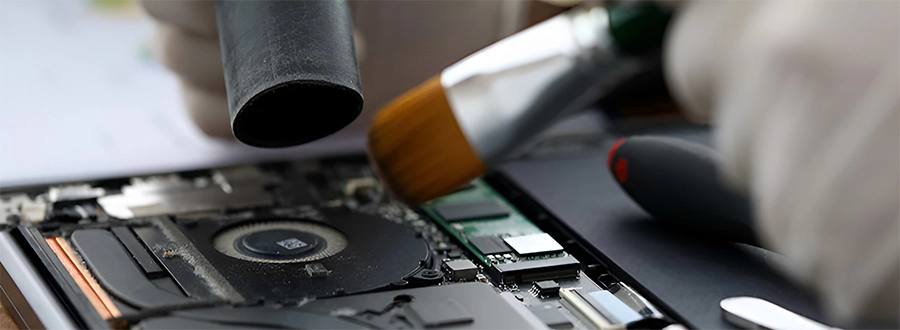
Dust control is one of the simplest and most effective ways to reduce overheating.
You can carefully clean the vents using short bursts of compressed air while the laptop is powered off and unplugged. Hold the can upright and avoid spraying continuously for too long. Focus on the intake and exhaust vents rather than forcing debris deeper inside.
For external surfaces, use a soft brush or dry microfiber cloth. If you are confident servicing hardware and the laptop is out of warranty, internal cleaning may help further. But if you are unsure, professional cleaning is safer.
Professional cleaning is especially worth considering if:
- the laptop is more than a year or two old
- the fan is very noisy
- the vents are visibly clogged
- performance drops during light use
- the device has never been cleaned
2. Always use your laptop on a hard, flat surface
A flat, solid surface gives the laptop the best chance of maintaining airflow. A desk, table, or laptop stand is much better than a couch, bed, or blanket.
If you often work from the sofa or bed, use a lap desk or rigid tray underneath the laptop. This prevents the vents from being blocked and reduces heat buildup.
3. Use a laptop stand
A laptop stand improves airflow by lifting the device slightly and allowing heat to escape more easily. It can also improve posture and make typing more comfortable if paired with an external keyboard.
Even small elevation can help. Some users use adjustable stands, while others prefer cooling pads or ventilated stands with built-in fans.
4. Consider a cooling pad if needed
A cooling pad can help in situations where the laptop regularly runs hot, especially during long work sessions, gaming, or high-performance tasks. Cooling pads are not a fix for serious hardware problems, but they can improve ventilation and reduce strain on the internal cooling system.
They are most useful when:
- you use the laptop for resource-heavy tasks
- the room is warm
- the laptop design has limited airflow
- you want extra cooling support during long sessions
5. Close apps you are not using
6. Restart the laptop regularly
A simple restart can clear stuck processes, memory issues, and software load that builds up over time. Many users leave laptops running continuously for days, which can allow background tasks to accumulate and increase heat.
Restarting periodically helps restore normal performance and reduce unnecessary strain.
7. Reduce high-performance settings when not needed
If your laptop is configured for maximum performance all the time, it may run hotter than necessary. Lowering screen brightness, switching to a balanced power mode, and reducing unnecessary visual effects can help reduce heat.
You can also:
- unplug unused USB-powered devices
- turn off Bluetooth if not needed
- disconnect external drives when idle
- reduce demanding browser activity
- pause heavy sync processes during intensive work
Small adjustments can reduce workload and improve thermal behaviour.
8. Keep your operating system and drivers updated
System updates often include bug fixes, performance improvements, and better power management. Outdated drivers, especially graphics and chipset drivers, can contribute to overheating or poor fan control.
Keeping your operating system and hardware drivers current helps the laptop manage performance and temperature more efficiently.
9. Scan for malware and unwanted software
Malware and poorly behaving software can keep the processor busy in the background, generating heat and slowing the system. Run reputable antivirus or anti-malware scans regularly, especially if your laptop suddenly starts running hot for no clear reason.
Also review installed applications and browser extensions. Removing software you no longer use can improve both performance and temperature management.
10. Monitor laptop temperature and system load
Temperature monitoring tools can help you understand whether your laptop is running hotter than normal. They can also show whether the CPU, GPU, or battery is under unusual stress.
Monitoring can be useful if:
- the fan is always loud
- performance drops unexpectedly
- you suspect heavy background activity
- you want to test the effect of cleaning or settings changes
These tools do not fix the problem by themselves, but they can help identify patterns and confirm whether overheating is improving.
11. Avoid direct heat and poor ventilation
Do not leave your laptop in direct sunlight, inside a hot car, near heaters, or in enclosed spaces with poor airflow. Even a healthy laptop can overheat in a hot environment.
If you are working in a warm room, try to improve ventilation. Cooler ambient air helps the laptop cool itself more effectively.
12. Check the battery if the laptop is older
If your laptop is several years old and overheating has become more common, the battery may be part of the issue. Warning signs include:
- the bottom of the laptop becoming very hot while charging
- rapid battery drain
- battery swelling
- charging issues
- overheating even during light tasks
A deteriorating battery should be inspected professionally. Do not continue using a laptop with a visibly swollen battery.
13. Replace worn thermal components if necessary
For older laptops, overheating may be caused by dried thermal paste or worn cooling hardware. This is not usually a DIY task for casual users, but a technician can inspect and restore the cooling system if needed.
This may be worthwhile if:
- cleaning has not solved the problem
- the fan works but temperatures stay high
- the laptop overheats under moderate use
- the device is several years old
14. Use the right charger
Always use the correct charger recommended for your laptop model. A low-quality or incorrect charger may generate excess heat, charge inefficiently, or strain the battery and power system.
If the charger or power adapter becomes extremely hot, stops charging reliably, or shows visible wear, replace it promptly.
Everyday Habits That Help Keep a Laptop Cool
- using the laptop on hard surfaces
- keeping vents clear
- cleaning dust periodically
- restarting when performance drops
- closing unnecessary apps
- avoiding very hot environments
- updating software regularlygetting strange fan noise checked early
- updating software regularly
These habits help reduce long-term heat stress and can extend the working life of the device.
When Overheating Means You Should Get Professional Help
Some overheating problems are easy to manage at home. Others need professional attention. You should consider expert help if:
- the laptop shuts down repeatedly
- the fan makes grinding or rattling sounds
- cleaning the vents does not improve anything
- the laptop becomes too hot during light use
- the battery appears swollen
- the device overheats while charging
- performance remains poor even after software cleanup
- you suspect internal fan failure
- the laptop is still under warranty
A technician can inspect the cooling system, fan operation, battery health, thermal paste condition, and internal dust buildup more safely and thoroughly.
Final Thoughts
Laptop overheating is not something to ignore. While a little warmth during normal use is expected, constant heat, loud fans, slow performance, and unexpected shutdowns are signs that your laptop may need attention. If left unresolved, overheating can reduce performance, shorten battery life, and increase wear on important internal components.
The good news is that many overheating issues can be prevented with simple steps such as keeping the vents clean, using the laptop on a flat surface, closing unnecessary programs, and making sure the system is properly maintained. Small habits can make a big difference in keeping temperatures under control and extending the life of your device.
If your laptop continues to overheat even after trying these fixes, it may be time for a professional inspection. Acting early can help you avoid more serious hardware problems and keep your laptop running smoothly, safely, and efficiently for longer.
Put your laptop away from direct sunlight or other external heat sources. Excessive exposure to direct sunlight or heat sources can lead to laptop overheating caused by battery damage or the hard drive’s expansion. These are some simple tips on how to prevent your laptop from overheating. If your laptop still shows signs of overheating, you may need professional help. Contact us or email us at helpdesk@computingaustralia.group. Our IT HelpDesk in Perth is 24/7 available to help you with all of your IT problems.
Jargon Buster
Central Processing Unit – CPU – The part of a computer that retrieves and processes instructions. It is the system’s brain and consists of an ALU, a control unit, and various registers.
USB Devices – Any external device that plugs into the computer through the USB port. E.g. External hard drives, flash drives etc.


