


 by The Computing Australia Group |
 Browse Smart, Stay Safe
The internet has become part of almost everything we do. We use it to work, shop, study, pay bills, speak to family, access healthcare, and manage business systems. For most people, going a full day without browsing the web is almost impossible.
That convenience, however, comes with risk.
Every time you browse online, websites, apps, advertisers, and third-party services may collect data about your behaviour, preferences, and activity. In the wrong hands, that data can be used for scams, identity theft, account compromise, malware attacks, and financial fraud. Cybercriminals do not need to “hack” a person in the Hollywood sense to cause damage. Very often, they simply wait for someone to click the wrong link, ignore a browser warning, reuse a password, or connect to an unsafe network.
Modern web security has improved a lot, but threats have evolved too. Today’s biggest online risks often come from phishing, malicious downloads, unsafe browser extensions, fake websites, stolen credentials, insecure public Wi-Fi, and social engineering. Security agencies and major browser providers consistently recommend layered protection: keep software updated, use secure connections, turn on strong account protection such as multi-factor authentication, and review browser settings regularly. CISA says MFA makes users far less likely to be hacked, while official browser guidance also stresses automatic updates and safety checks.
In this guide, we will expand on seven essential safe-browsing practices and add modern recommendations that better reflect how people use the internet today. Whether you are an individual user, a remote worker, or a small business owner, these tips will help you reduce your risk and browse with more confidence.
Why safe browsing matters more than ever
Many users still assume that online security problems mostly affect large corporations. In reality, everyday users are common targets because attackers know people are busy, distracted, and often trusting. A scammer does not need advanced tools if they can trick someone into entering a password on a fake login page or downloading a harmful file.
Safe browsing is not just about “avoiding viruses.” It is about protecting your identity, finances, private conversations, work accounts, and business data. A single unsafe action can lead to:
- stolen passwords
- fraudulent banking or shopping transactions
- ransomware or spyware infections
- email compromise
- social media account takeovers
- leakage of business or patient data
- long-term privacy exposure through trackers and malicious browser permissions
The good news is that safer browsing does not require technical expertise. A few strong habits can dramatically reduce risk.
1. Keep your software and browser updated
Outdated software remains one of the easiest paths for attackers. Web browsers, operating systems, and browser extensions regularly receive security patches to fix newly discovered vulnerabilities. If you delay updates, you may continue using software with known weaknesses that criminals already know how to exploit.
This is why automatic updates are one of the simplest and most effective defences. Official guidance from the UK’s National Cyber Security Centre recommends ensuring automatic updates are enabled for both browsers and extensions, and Google’s Chrome safety guidance also highlights update reminders and Safety Check features.
What to update
Do not limit yourself to updating only your laptop or desktop operating system. You should regularly update:
- your web browser
- browser extensions and add-ons
- antivirus or endpoint protection tools
- your phone or tablet operating system
- commonly used apps such as PDF readers, office tools, messaging apps, and remote access software
- router firmware where relevant
Best practice
Turn on automatic updates wherever possible. This reduces the chance that a critical patch sits ignored for weeks. In workplaces, outdated browsers are especially dangerous because users rely on them to access cloud systems, portals, banking tools, and internal applications.
Why it matters
Attackers actively scan for devices running old software. Once they find one, they may use it to install malware, steal saved credentials, or redirect traffic to malicious pages.
A smoother browsing experience is a bonus. Updated browsers are usually faster, more stable, and better at identifying dangerous websites.
2. Check that the site is genuine before you trust it
A padlock and https are important, but they are not enough on their own.
A secure connection means data is encrypted between your browser and the website, which helps protect against interception. Google has continued strengthening HTTPS protections, and Chrome is moving further toward warning users before they access non-HTTPS public sites.
But encryption does not prove that a website is legitimate. Scammers can create fake websites that also use HTTPS.
What to look for
Before entering any password, payment detail, or personal information, check:
- the full domain name, not just the page design
- whether the spelling looks slightly off
- whether the page contains poor grammar, urgency tactics, or suspicious pop-ups
- whether contact details, refund policies, or company information seem real
- whether the site was reached through a trusted path rather than an unsolicited message
For example, a fake login page may look almost identical to a trusted service but use a misleading address. On a quick glance, many people will not notice the difference.
Safer habit
Many browsers now include Safe Browsing or similar warnings to help block dangerous pages, malicious downloads, and suspicious permissions. Chrome’s official guidance includes features such as Safety Check, Safe Browsing protection, and reviews of unused or risky site permissions.
These protections help, but they work best when users slow down and verify what they are clicking.
3. Strengthen your accounts with strong passwords, MFA, and passkeys
Passwords still matter, but passwords alone are no longer enough.
One of the biggest weaknesses in everyday browsing is credential theft. People often reuse passwords across multiple accounts, choose easy combinations, or fall for phishing pages that capture login details. CISA states that enabling MFA makes users 99% less likely to be hacked, which is one of the strongest reasons to use it anywhere it is available.
Start with a strong password foundation
- long
- unique to each account
- hard to guess
- unrelated to personal details such as birthdays, pet names, or phone numbers
The better approach is to use a reputable password manager. Password managers can generate long, random passwords and store them securely so you do not have to memorise every login.
Add MFA everywhere you can
- an authenticator app code
- a hardware security key
- a device prompt
- biometric verification
- email accounts
- banking and finance
- cloud storage
- work accounts
- e-commerce accounts with stored payment methods
- social media and messaging platforms
Modern authentication is increasingly moving toward passkeys and phishing-resistant MFA. Microsoft’s security guidance highlights phishing-resistant MFA, and broader industry guidance tied to CISA has pushed for passkeys and stronger authentication by default.
Passkeys reduce reliance on traditional passwords and make it much harder for attackers to steal your credentials through fake login pages.
If an account matters, protect it with more than a password.
4. Be cautious with downloads, browser extensions, and pop-ups
- “Your device is infected”
- “Update your media player now”
- “Call support immediately”
- “You have won a prize”
- “Your browser is out of date”
Most major browsers offer pop-up blocking and security checks. Keep these protections enabled. Also review notification permissions. Official Chrome guidance notes that the browser may prompt users to review potentially unwanted notification grants and remove permissions from sites that have not been used recently.
Browser extensions can be useful, but every extension adds risk. Some request excessive permissions, inject ads, track behaviour, or become compromised after installation.
Only install extensions that are genuinely necessary. Before adding one, check:
- who publishes it
- how many users it has
- its review history
- what permissions it requests
- whether you still need it
Download apps, browser tools, and software only from official stores, trusted vendors, or verified company websites. Avoid “free cracked” versions, unofficial mirrors, and installation bundles filled with extra software.
One careless click can expose your device to spyware, ransomware, or account theft.
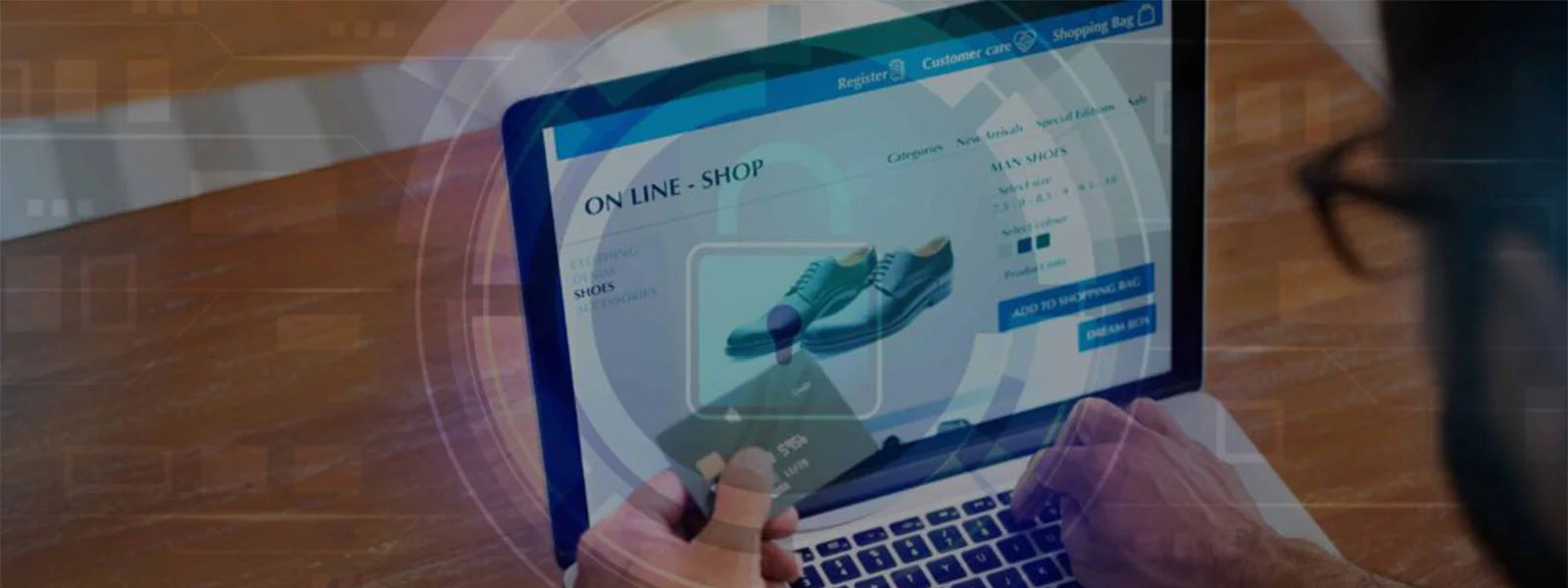
5. Shop and make payments only on trusted websites
- a legitimate domain name
- clear company contact details
- realistic pricing
- transparent return and refund policies
- secure checkout pages using HTTPS
- recognisable payment methods
- consistent branding and professionally written content
Payment safety tips
- avoid saving card details on unfamiliar sites
- use virtual cards or protected payment options where available
- monitor bank transactions regularly
- do not buy through links in unsolicited messages
- confirm seller legitimacy before entering payment details
Do not let design fool you. A polished storefront does not guarantee a trustworthy seller. When in doubt, search the company name independently, read third-party reviews carefully, and verify contact details outside the checkout page.
6. Use public Wi-Fi carefully and protect your connection
- intercept unencrypted traffic
- redirect users to fake login pages
- mimic legitimate Wi-Fi names
- harvest credentials
- inject harmful content
- monitor browsing patterns
Safer public Wi-Fi habits
- verify the exact network name with staff
- avoid accessing banking or highly sensitive systems
- turn off file sharing and auto-join features
- keep your firewall on
- use HTTPS websites only
- use a reputable VPN when appropriate
- forget the network after use
A VPN can help by encrypting traffic between your device and the VPN service, especially on untrusted networks. But a VPN is not a magic shield. It will not protect you if you willingly enter your password into a fake website.
Using your mobile hotspot is often safer than connecting to unknown public Wi-Fi, especially for work logins, financial accounts, or patient-related systems.
7. Protect your privacy by managing cookies, permissions, history, and browser settings
Safe browsing is not only about malware. It is also about reducing unnecessary exposure of your personal data.
Websites and apps frequently request access to notifications, location, camera, microphone, clipboard, and more. Over time, users often grant permissions they no longer remember. Official browser guidance now emphasises reviewing permissions and security settings as part of routine browsing hygiene.
Review browser permissions regularly
- notifications
- camera
- microphone
- location
- downloads
- clipboard
- background syncing
Clearing cache, cookies, and browsing history can be useful for privacy and troubleshooting, but it is not a complete security solution on its own. It helps reduce stored browsing traces and may remove tracking cookies, yet safer browsing depends more on strong settings and safer behaviour.
- enabling browser security checks
- keeping Safe Browsing or equivalent protections on
- blocking unnecessary third-party cookies where suitable
- reviewing saved passwords in your browser
- removing old autofill data on shared devices
- disabling notifications from sites you do not trust
- signing out fully on public or shared computers
Shared or public computer warning
If you ever use a shared device, never rely on simply closing a tab. Sign out completely, close the browser, and do not save passwords in the browser. Private browsing mode can reduce leftover local traces, but it does not make unsafe behaviour safe.
Other smart habits that improve browsing safety
Learn to recognise phishing
Think before you click
If something looks wrong, act quickly. Change passwords, revoke sessions, run security scans, alert your IT provider, and monitor financial accounts.
Final thoughts
Browsing the internet safely is not about paranoia. It is about being intentional.
You do not need to be a cybersecurity specialist to protect yourself online. Most security incidents begin with ordinary actions: clicking a link, installing an extension, signing into a fake page, or ignoring an update reminder. By building safer habits into your everyday browsing, you can reduce risk without making the internet difficult to use.
The smartest approach is layered protection:
- keep everything updated
- verify websites carefully
- use strong unique passwords
- enable MFA
- be cautious with downloads and pop-ups
- shop only on trusted sites
- treat public Wi-Fi with care
- review browser permissions and privacy settings regularly
These are some simple tips on how to browse the internet safely. As the world gets connected more and more to the internet, we cannot avoid using it. But you can certainly understand and be cautious about risks to make your browsing experience easy and safer. Need to secure your systems? Our cybersecurity experts are 24/7 ready to assist you with any cybersecurity issues. Contact us or email us at cybersecurity@computingaustralia.group.
Jargon Buster
Pop-ups or Pop-up ads – forms of online advertisement that are graphical user interface display areas that suddenly appear in the visual interface.
Encryption – The process of converting data into code to protect it from unauthorised access.
Virus – A malicious program that infiltrates onto a user’s computer and replicates itself by modifying other computer programs, inserting its own code, and later performing malicious actions.

Blake Parry
FAQ
How can I browse the internet safely every day?
To browse the internet safely, keep your browser and devices updated, use strong unique passwords, enable multi-factor authentication, avoid suspicious links, and only enter personal information on trusted websites with secure connections. It also helps to review browser permissions regularly and avoid unsafe public Wi-Fi when handling sensitive information.


