


 by The Computing Australia Group |
 Recover deleted files in Windows quickly and safely
Losing an important file can be stressful. One moment it is there; the next, it has disappeared from your desktop, Documents folder, USB drive, shared drive, or cloud storage. It might have been deleted by mistake, overwritten, moved to another folder, removed during a clean-up, or affected by a software issue or security incident.
The good news is that a deleted file is not always gone forever. Windows includes several built-in recovery options, and many business environments also use cloud storage, automated backups, and version history tools that can help you retrieve missing documents, spreadsheets, images, presentations, and other important data.
In this 5 Minute HelpDesk guide, our IT support team explains how to recover lost or deleted files in Windows, what to do first, and when to contact a professional IT HelpDesk for support.
Before You Start: Stop and Check These First
Before trying advanced recovery steps, take a moment to reduce the risk of making the problem worse.
When a file is deleted, Windows may remove the visible reference to the file, but parts of the data may still exist on the drive for a period of time. Continued use of the device can overwrite that recoverable data. Microsoft also recommends reducing or avoiding use of the computer when trying to improve the chances of recovery with Windows File Recovery.
Start with these quick checks:
1. Do not save new files to the same drive where the missing file was stored.
2. Do not install recovery software on the affected drive, as this can overwrite recoverable data.
3. Check whether the file was moved, renamed, or synced elsewhere before assuming it was deleted.
4. Check cloud storage, such as OneDrive, SharePoint, Dropbox, or Google Drive, if the file was stored or synced there.
5. Contact IT early if the file is business-critical, confidential, part of a legal matter, or possibly affected by malware or ransomware.
A fast response can make a significant difference.
Step 1: Search for the Missing File in Windows
Sometimes a file has not been deleted at all. It may have been moved to a different folder, saved under a different name, or synced to another location.
Open File Explorer and use the search bar in the top-right corner. Search for:
- Part of the file name
- The file extension, such as .docx, .xlsx, .pdf, .jpg, or .pptx
- A keyword you remember from the file
- The date you last edited it
- The folder where you usually save that type of file
You can also check common locations such as:
- Desktop
- Documents
- Downloads
- Pictures
- OneDrive
- Recent files in Microsoft Word, Excel, or PowerPoint
- Shared folders or network drives
- USB drives or external hard drives
In Microsoft Office apps, open the relevant program and check File > Open > Recent. This can reveal whether the file was moved, renamed, or opened from a cloud location.
Step 2: Recover Deleted Files from the Recycle Bin
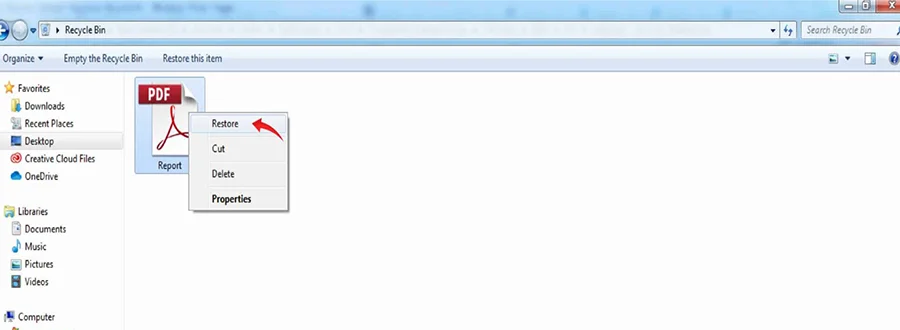
The Recycle Bin is the easiest place to recover recently deleted files. When you delete a file from your local Windows computer, it often moves to the Recycle Bin instead of being removed immediately.
To restore a file from the Recycle Bin:
1. Open the Recycle Bin from your desktop.
2. Search or scroll until you find the file or folder.
3. Right-click the item.
4. Select Restore.
Windows will return the file to its original location. After it has been restored, you can move or copy it to another folder or drive.
This method usually works when:
- The file was deleted from a local drive.
- The Recycle Bin has not been emptied.
- The file was not permanently deleted using Shift + Delete.
- The file was not deleted from certain removable drives or network locations.
If the file is not in the Recycle Bin, continue with the next steps.
Step 3: Restore Files Using File History or Previous Versions

Windows includes recovery options that can restore previous versions of files and folders, but they only work if backup or versioning features were enabled before the file was lost.
File History is designed to automatically back up personal files, such as documents, photos, and videos, to an external drive or network location. Microsoft describes it as a way to restore previous versions of files if they are lost, damaged, or accidentally changed.
To restore a file or folder using File History or previous versions:
1. Open File Explorer.
2. Go to the folder where the deleted file was originally stored.
3. Right-click the folder.
4. Select Restore previous versions.
5. Review the available versions.
6. Choose a version from before the file was deleted or changed.
7. Select Restore.
You can also open File History directly from Windows settings or Control Panel, depending on your Windows version and configuration.
This is especially useful when:
- A file was deleted from a known folder.
- A file was overwritten by mistake.
- A folder was accidentally changed or emptied.
- You need an earlier version of a document.
For business users, previous versions may also be available through server backups, network shares, SharePoint, or OneDrive.
Step 4: Restore Deleted Files from a Backup

If the file is not in the Recycle Bin and no previous version is available, the next option is to restore it from a backup.
Backups may be stored on:
- An external hard drive
- A USB storage device
- A network drive
- A company backup system
- A cloud backup platform
- Microsoft OneDrive or SharePoint
- A full device backup
- A managed backup and disaster recovery system
Windows still provides backup and restore options, including File History and Windows Backup. Microsoft’s Windows Backup can help back up and restore apps, settings, files, photos, and Microsoft Edge preferences on a Windows PC.
To check backup options in Windows:
1. Open Settings.
2. Search for Backup.
3. Review available backup options.
4. Check whether File History, Windows Backup, OneDrive, or another backup tool is active.
5. Follow the restore prompts for the relevant backup source.
For older backup configurations, you may also find options through:
1. Open Control Panel.
2. Select System and Security.
3. Select Backup and Restore.
4. Choose Restore my filesor a similar restore option.
5. Follow the restore wizard.
If your organisation uses managed IT services, your HelpDesk may have access to centralised backups that are not visible from your local computer.
Step 5: Recover Files from OneDrive, SharePoint, or Cloud Storage

Many Windows users now store files in OneDrive, Microsoft Teams, or SharePoint, even when the files appear to be saved locally. This means the best recovery option may be in the cloud rather than on your computer.
If the missing file was stored in OneDrive, check:
- The OneDrive Recycle Bin
- Version history
- The OneDrive web portal
- Shared folders
- Recent files in Microsoft 365
- The original Teams or SharePoint location
Microsoft notes that OneDrive can help restore deleted files from the OneDrive Recycle Bin or restore a previous version of a file. For larger problems, such as many files being deleted, overwritten, corrupted, or affected by malware, OneDrive may also be restorable to a previous point in time.
To restore a deleted file from OneDrive:
1. Go to OneDrive online.
2. Sign in with your Microsoft account or work account.
3. Open the Recycle bin.
4. Select the file or folder.
5. Choose Restore.
To restore an earlier version of a OneDrive file:
1. Sign in to OneDrive.
2. Find the file.
3. Right-click the file.
4. Select Version history.
5. Choose the version you need.
6. Restore or download it.
Version history can be especially helpful when a file was not deleted but was changed, corrupted, or overwritten. Microsoft states that OneDrive version history works with many file types, including Microsoft 365 files, PDFs, CAD files, photos, videos, and more.
For SharePoint files, your organisation may also have a SharePoint Recycle Bin and a second-stage Recycle Bin that administrators can access. Contact your IT team quickly if an important shared file has disappeared.
Step 6: Check Email, Chat, and Shared Locations
If backup recovery does not immediately work, think about where else the file may exist.
Ask yourself:
- Did I email the file to someone?
- Did someone email the file to me?
- Was it attached to a Teams, Slack, or chat message?
- Was it uploaded to a project folder?
- Was it saved in OneDrive, SharePoint, Dropbox, or Google Drive?
- Was it copied to a USB drive?
- Was it exported from another system?
- Did another staff member collaborate on it?
You may not recover the latest version, but an earlier copy can still save hours of rework.
For Microsoft 365 environments, also check:
- Outlook attachments
- Teams file tabs
- SharePoint document libraries
- OneDrive shared files
- Recent documents in Word, Excel, and PowerPoint
- AutoRecover files in Office apps
Step 7: Use Windows File Recovery for Permanently Deleted Files
If the file is not in the Recycle Bin, not in File History, and not available from a backup, Microsoft’s Windows File Recovery may help in some cases.
Windows File Recovery is a command-line app available from the Microsoft Store. Microsoft says it can be used to try to recover files deleted from local storage devices, including internal drives, external drives, and USB devices, when they cannot be restored from the Recycle Bin. It does not support recovery from cloud storage or network file shares.
This tool is more technical than the Recycle Bin or File History. It may be suitable when:
- A file was permanently deleted.
- The Recycle Bin was emptied.
- A file was deleted from a USB drive.
- A file was deleted from an external hard drive.
- You need to attempt recovery before using third-party software.
However, it is important to recover files to a different drive from the one you are scanning. Saving recovered files back to the same drive can overwrite data you are trying to recover.
For business users, we recommend involving IT before using command-line recovery tools. A professional technician can help reduce the risk of overwriting recoverable data.
Step 8: What If the File Was Lost After a Windows Update?
Occasionally, users think files have disappeared after a Windows update or device upgrade. In some cases, the files are still present but are stored in a different user profile, temporary profile, OneDrive folder, or Windows.old folder.
Check:
- Your usual user profile folder
- C:\Users
- OneDrive folders
- Desktop and Documents under different user accounts
- The Windows.old folder, if present
- Recent files in Microsoft Office
- Search results across the entire PC
Microsoft provides guidance for finding lost files after upgrading Windows, including using search and checking common recovery locations.
If your business device was recently upgraded, migrated, or re-imaged, contact your IT HelpDesk. They may be able to check migration logs, backup records, and old profile data.
Step 9: What If Files Were Deleted During a Cybersecurity Incident?
Deleted files can sometimes be the result of something more serious than a simple mistake. Malware, ransomware, compromised accounts, accidental bulk deletion, or unauthorised access can all cause files to disappear.
Warning signs include:
- Multiple files missing at once
- Files renamed with strange extensions
- Files that will not open
- Unexpected ransom notes
- Suspicious login notifications
- Deleted files across shared drives
- Missing OneDrive or SharePoint files
- Colleagues reporting similar issues
If you suspect a security incident:
1. Stop using the affected computer.
2. Disconnect it from the network if instructed by IT.
3. Do not delete suspicious files or messages.
4. Do not attempt random recovery tools.
5. Contact your IT HelpDesk immediately.
A security-related deletion should be handled carefully. Your IT team may need to preserve evidence, check logs, stop further data loss, restore from clean backups, and confirm whether accounts or devices have been compromised.
How to Prevent File Loss in the Future
Recovering a lost file is useful, but preventing data loss is better. A strong backup and recovery strategy protects your business from accidental deletion, hardware failure, cyberattacks, and human error.
Here are practical ways to reduce the risk.
1. Use Automatic Backups

Do not rely on manual copying. Automated backups are more reliable and reduce the chance of forgetting important files.
For businesses, backups should be:
- Automatic
- Monitored
- Encrypted
- Tested regularly
- Stored separately from the main device
- Protected from ransomware
- Documented as part of a disaster recovery plan
2. Store Business Files in Managed Locations
Avoid saving important work only on a local desktop. Files stored in managed cloud or network locations are usually easier to restore.
Good options include:
- OneDrive for individual work files
- SharePoint for team documents
- Microsoft Teams file libraries
- Managed network drives
- Approved cloud storage platforms
3. Enable Version History
Version history helps when a file is changed or overwritten rather than deleted. It allows users to roll back to an earlier version without needing a full backup restore.
This is useful for:
- Word documents
- Excel spreadsheets
- PowerPoint presentations
- PDFs
- Project files
- Shared team documents
4. Test Your Restore Process
A backup is only useful if it can be restored. Businesses should regularly test file recovery so they know backups work before an emergency occurs.
Test:
- Individual file restore
- Folder restore
- Cloud file restore
- User account recovery
- Device recovery
- Ransomware recovery scenarios
5. Train Staff on Safe File Handling
Many file loss incidents come from everyday mistakes. Staff should understand:
- How the Recycle Bin works
- Where business files should be saved
- How to use OneDrive and SharePoint correctly
- How to avoid deleting shared files
- When to contact IT
- When to contact IT
- What to do during a suspected cyber incident
Clear processes reduce panic and improve recovery outcomes.
When to Contact an IT HelpDesk
Some file recovery tasks are simple. Others require professional support.
Contact your IT HelpDesk if:
- The file is business-critical.
- The Recycle Bin is empty.
- The file was deleted from a shared drive.
- The file was stored in OneDrive or SharePoint and cannot be restored.
- The device may have hardware damage.
- The file was deleted from an external drive or USB device.
- You suspect malware, ransomware, or unauthorised access.
- You need to recover multiple files or folders.
- You are not sure which recovery option is safest.
The earlier you ask for help, the better the chance of recovering the file safely.
Final Thoughts
Deleted files are not always permanently lost. In many cases, you can recover them from the Recycle Bin, File History, a previous version, OneDrive, SharePoint, a backup, or a professional recovery process.
The most important rule is to act quickly and avoid writing new data to the affected drive. For business users, it is also important to involve IT early, especially when files are critical, confidential, or potentially affected by a security incident.
Need help recovering lost or deleted files in Windows? Computing Australia Group’s IT HelpDesk team is available to support businesses with file recovery, backup management, Microsoft 365 support, cybersecurity response, and managed IT services.
Need urgent help? Contact our IT HelpDesk or email helpdesk@computingaustralia.group.
Jargon Buster
Wizard – a help feature of a software package that guides users with a set of instructions.
Recycle Bin – a folder to temporarily store files or folders that have been deleted in the file manager, but not permanently.

Gordon Murdoch
FAQ
Can I recover a deleted file in Windows?
Yes. In many cases, you can recover a deleted file from the Recycle Bin, File History, a previous version, OneDrive, SharePoint, or a backup. The best recovery method depends on where the file was stored and how it was deleted.
Where do deleted files go in Windows?
Most files deleted from a local Windows drive go to the Recycle Bin first. However, files may be permanently deleted if you use Shift + Delete, empty the Recycle Bin, delete files from some removable drives, or remove files from certain network or cloud locations.
How do I recover a file from the Recycle Bin?
Open the Recycle Bin, find the deleted file, right-click it, and select Restore. Windows will return the file to its original folder.
Can I recover files after emptying the Recycle Bin?
Sometimes. You may be able to recover files using File History, Previous Versions, OneDrive version history, cloud backups, business backups, or a recovery tool such as Windows File Recovery. Avoid saving new files to the same drive, as this can overwrite recoverable data.
What should I do immediately after deleting an important file?
Stop using the affected drive as much as possible. Do not install recovery software or save new files to the same location. Check the Recycle Bin, cloud storage, File History, backups, and recent files. Contact IT quickly if the file is business-critical.


